Zerno on a Mac: download and first launch
The download starts by itself. If it did not — download by hand.
An Intel Mac needs a different image: Zerno-8-intel.dmg.A Mac with Apple silicon — the main image, Zerno-8.dmg. Which Mac you have — Apple menu → About This Mac, the Chip or Processor line.
Installing takes two moves: open the downloaded file and drag Zerno onto the Applications folder next to it.
- The downloaded file Zerno-8.dmg is in your Downloads folder (the
arrow icon on the right of the Dock). Double-click it — a window called "Zerno 8" opens with
the app and an Applications folder inside.
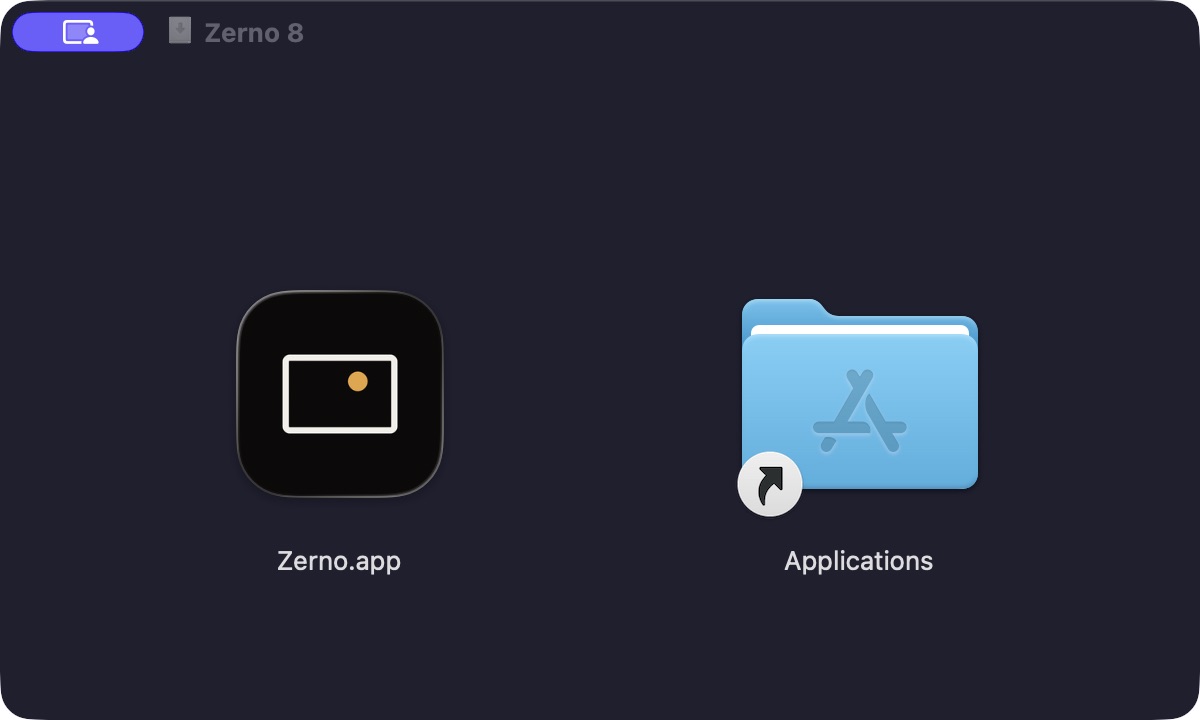 The image window: Zerno and the Applications folder side by side
- Drag Zerno onto Applications right in this window — it leads to your
real Applications folder. Done: Zerno is installed, you can close the image and delete
Zerno-8.dmg.
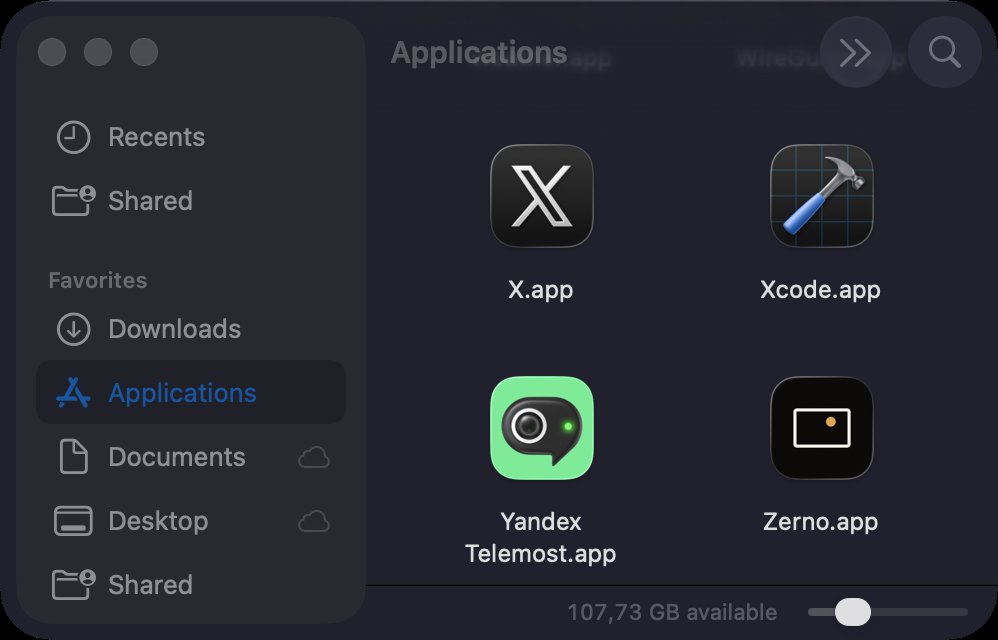 The Applications folder: Zerno is in place
The build is signed with its own key rather than an Apple Developer ID certificate, so macOS will stop it on the first opening. This is neither an error nor a virus — the system simply does not know the developer. Three steps, once per version: every build has its own signature.
- Open Zerno from the Applications folder. A window called “Zerno.app” Not
Opened appears, saying Apple could not verify the program. Press Done. If there is
a "Move to Bin" button next to it — do not press that one.
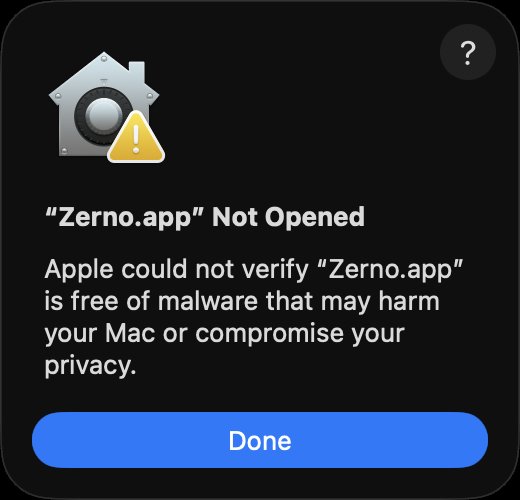 The first opening: press Done
- Open System Settings → Privacy & Security and scroll down to the
Security section: there is a line about "Zerno.app" and an Open Anyway button.
Press it — macOS may ask for your password.
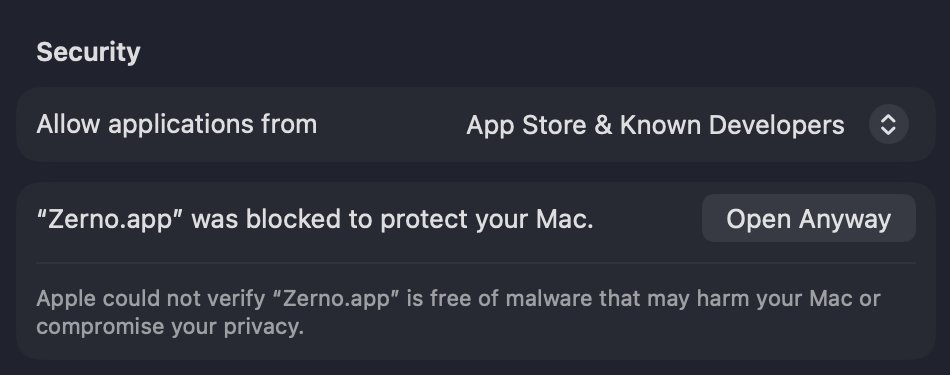 The Security section: the Open Anyway button
- Open Zerno again and press Open. From then on the program opens like any other.
- The licence window opens. Try it for 3 days — no code needed: for
three days the whole program works; you need the internet at every launch, and the trial
is given once per computer. Already bought — paste the code that looks like
ZRN-XXXX-XXXX-XXXX from the email into the code field and press
Apply.
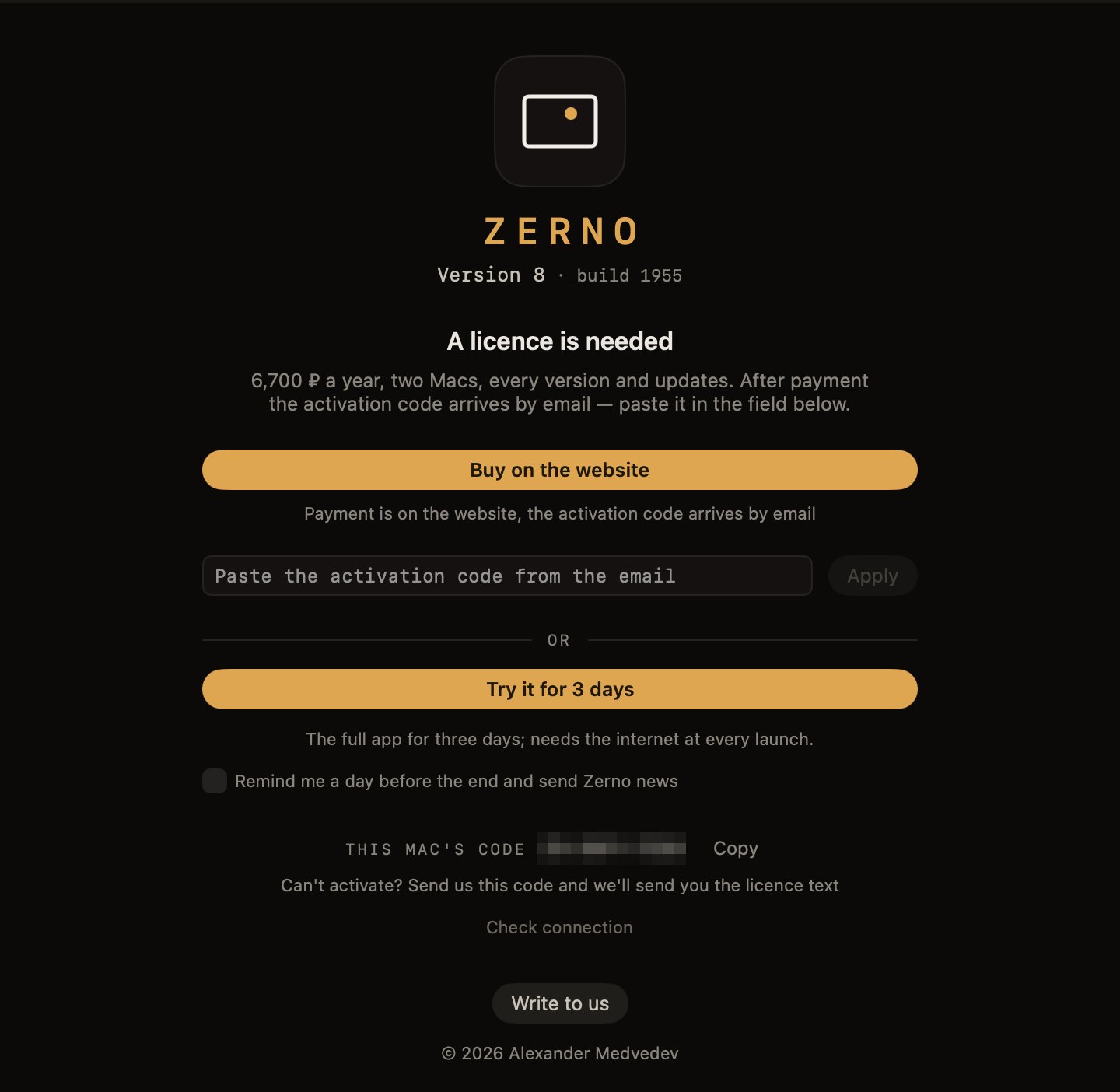 The licence window: the code from the email and Apply — or Try it for 3 days
- Press Add frames… in the middle of the empty library, or simply drag photos or a folder onto the window. Then — First steps: pick the keepers, choose a preset, print.
You need a Mac with macOS 14 or later and Metal 2. No code yet — how to get a licence. Something is wrong — Support or write to ask@zerno.photo.